October 15, 2026Explainer
JetKVM ATX Power Control: Extension Board Install Guide
A KVM lets you see a hung server; the ATX extension lets you power-cycle it. Here is how to wire the JetKVM's ATX board to your motherboard, step by step.
By Andrew Douglass · Founder
Disclosure: Our articles contain affiliate links, including Amazon. If you buy through one, we may earn a commission at no extra cost to you, and as an Amazon Associate we earn from qualifying purchases. It never affects our testing, measurements, or verdicts. Full disclosure.
JetKVM ATX power control is the upgrade that turns the JetKVM from a remote screen into genuine remote hands. Out of the box the JetKVM lets you see and type on a machine, but if that machine is fully powered down or hung so hard it needs a hard reset, you still need someone to press the button. The ATX extension board solves exactly that: it wires into the motherboard's front-panel header and lets you power on, power off, and reset the target from the browser. This guide covers what it is, how to install it, and how it compares to other devices' power-control approaches.
What the ATX extension does
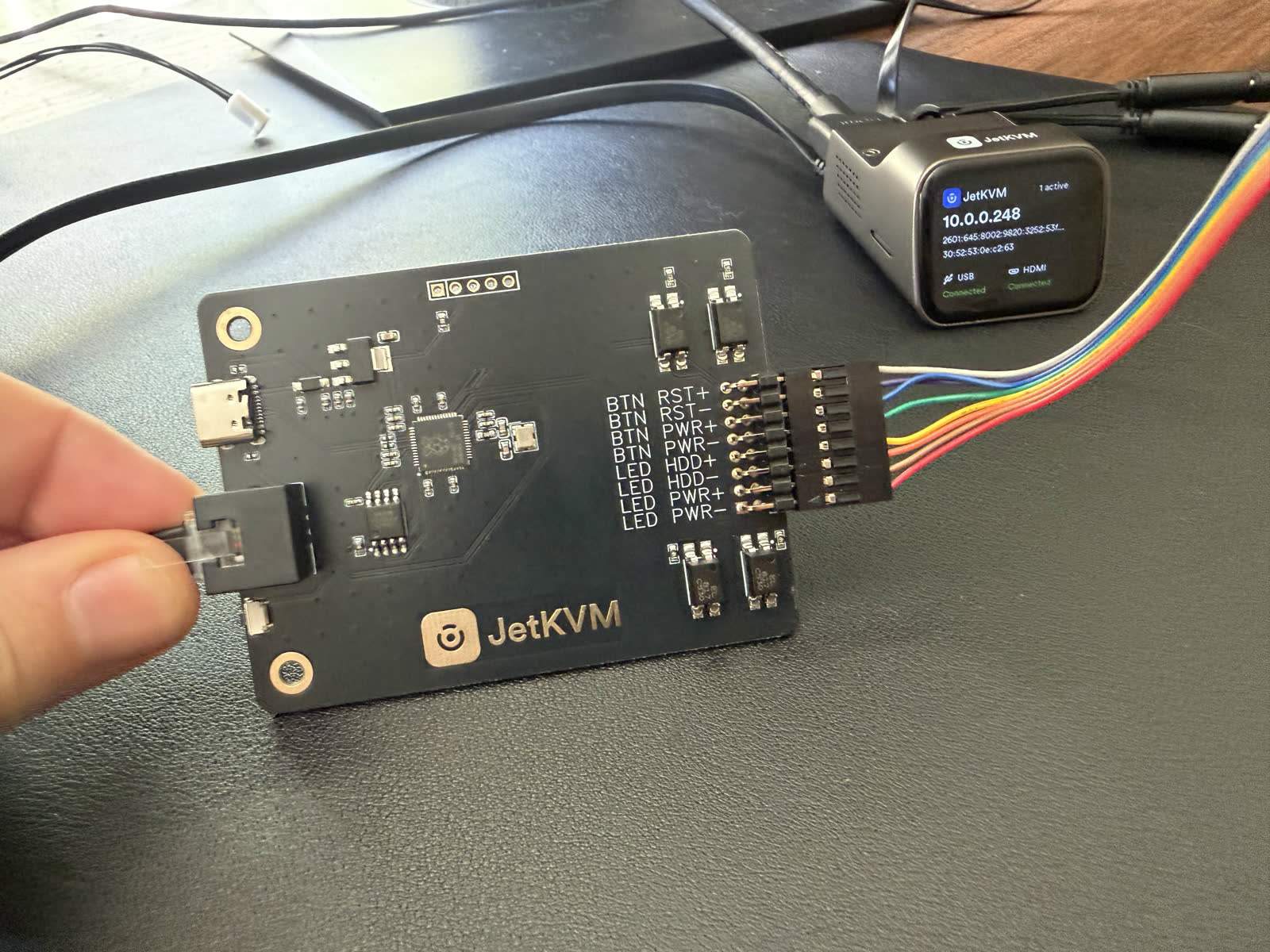
Turning a PC on or off is not a data command; it is momentarily shorting two pins on the motherboard's front-panel header (the same pins your case's power button uses). The JetKVM's ATX extension board taps into that header and does electronically what your finger does: a short pulse to power on or trigger a soft shutdown, a long pulse to force the machine off, and the same for the reset pins. It also reads the power LED so the JetKVM can report whether the target is currently on or off. The full electronics behind this are in our ATX power control explainer.
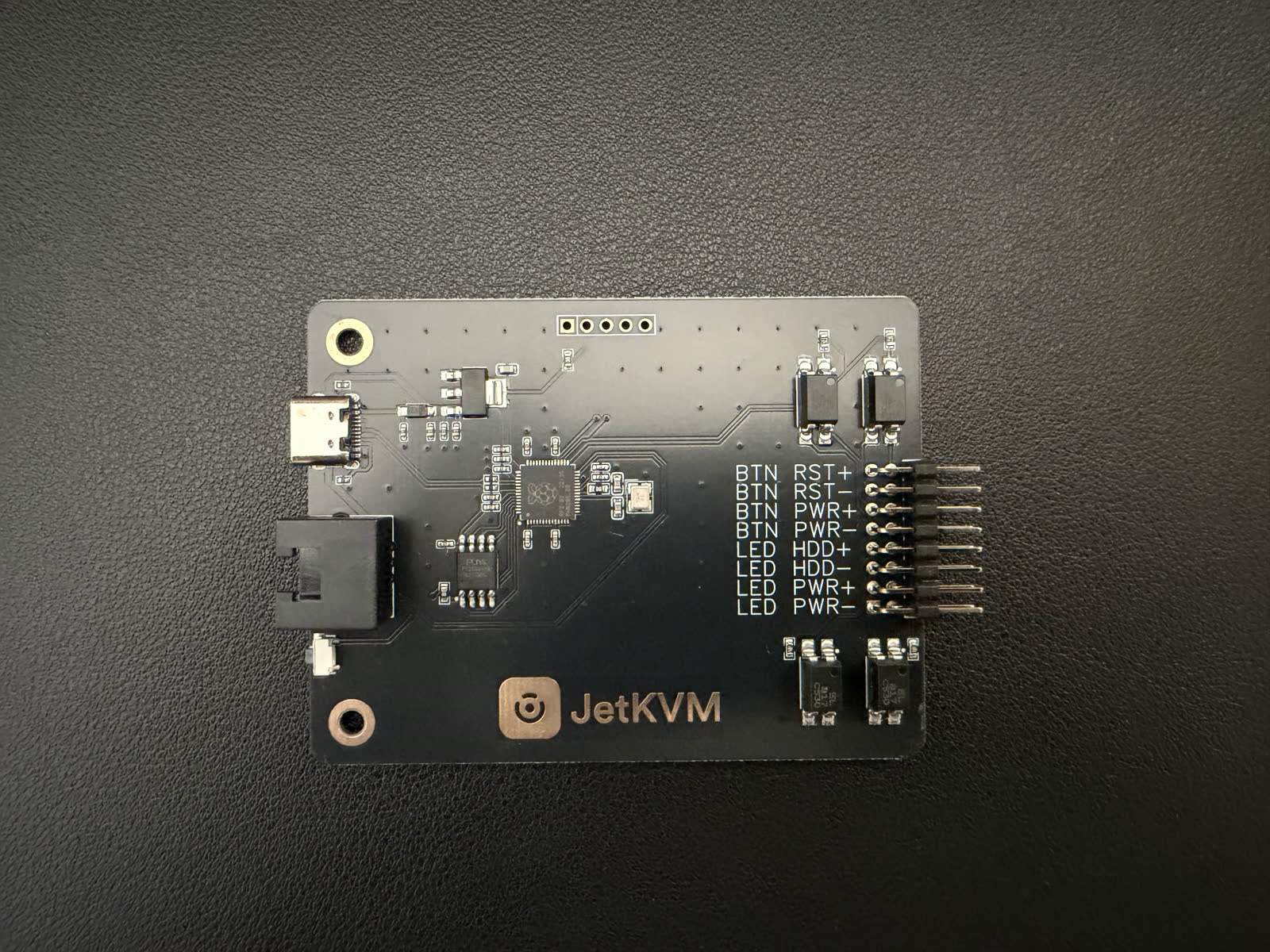
The board connects back to the JetKVM through its dedicated extension connector. There is also a DC power-control variant for devices that use a barrel-jack power input rather than an ATX front-panel header, so machines that are not standard ATX desktops can still be covered.
Before you start
You need the JetKVM ATX extension board, access to the inside of the target machine, and a moment with its manual. The one part that takes care is identifying the front-panel header pins on your specific motherboard, the power switch, reset switch, and power LED, because their exact layout varies by board. The power-switch pins are non-polarized, so orientation does not matter for them, but the LED pins are polarized and must be connected the right way around to sense state correctly. Have the motherboard manual open to its front-panel header diagram.
The install, step by step
Step 1
Power down and open the target
Shut down the target machine and open the case so you can reach the motherboard's front-panel header (often labeled F_PANEL or similar).
Step 2
Identify the header pins
Using the motherboard manual, locate the power-switch, reset-switch, and power-LED pins on the front-panel header. Note the LED polarity; the switch pins are non-polarized.
Step 3
Connect the ATX board to the header
Wire the ATX extension board's leads to the corresponding front-panel pins. The case's own power button can often stay connected in parallel, so you keep local control too.
Step 4
Connect the ATX board to the JetKVM
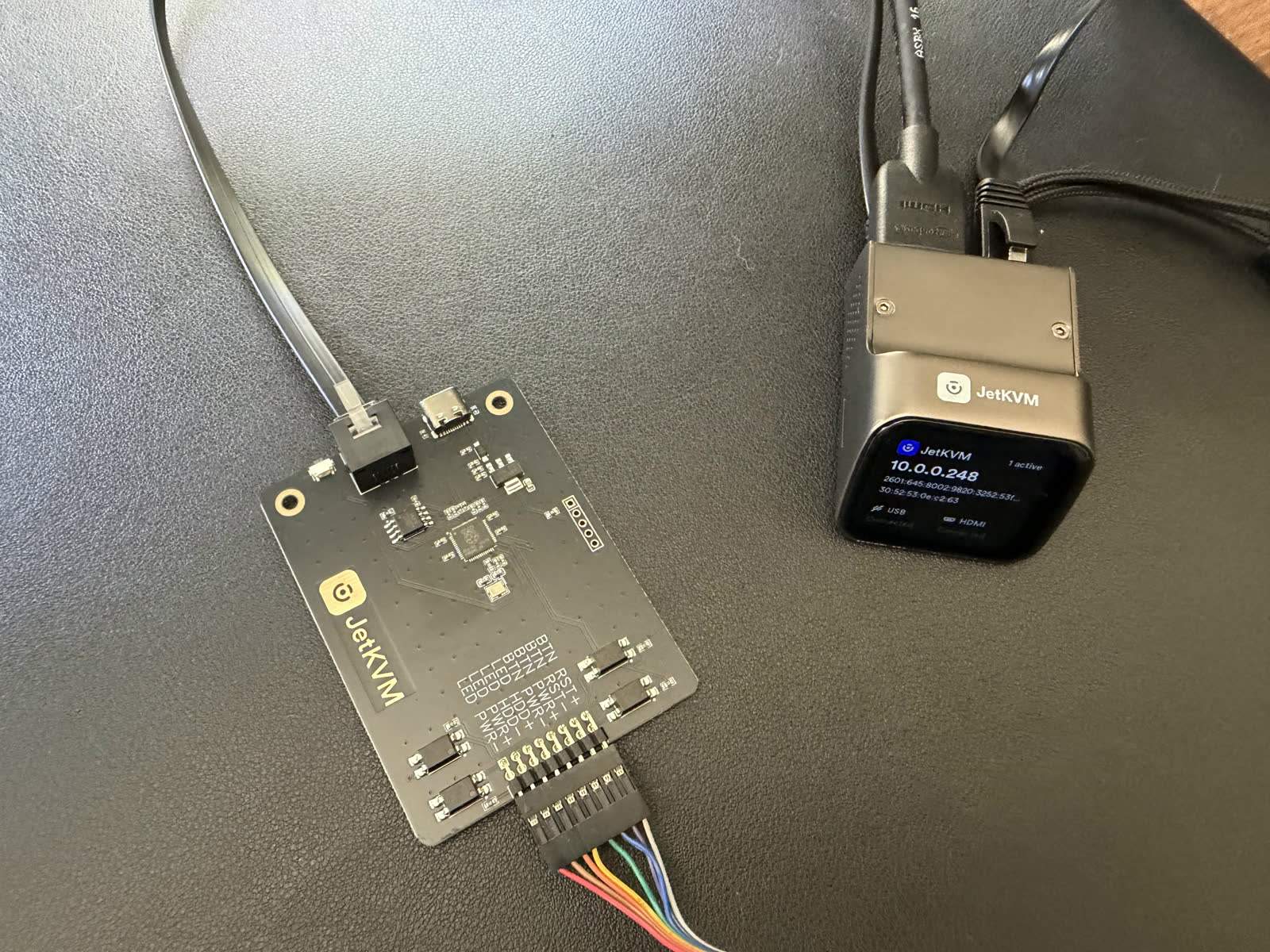
Plug the ATX board into the JetKVM's extension connector. This is what lets the JetKVM drive the pins you just wired.
Step 5
Enable and test in the interface
In the JetKVM web interface, enable the ATX power controls, then test a soft power event and confirm the reported power state matches the machine. Test a reset last.
Using it
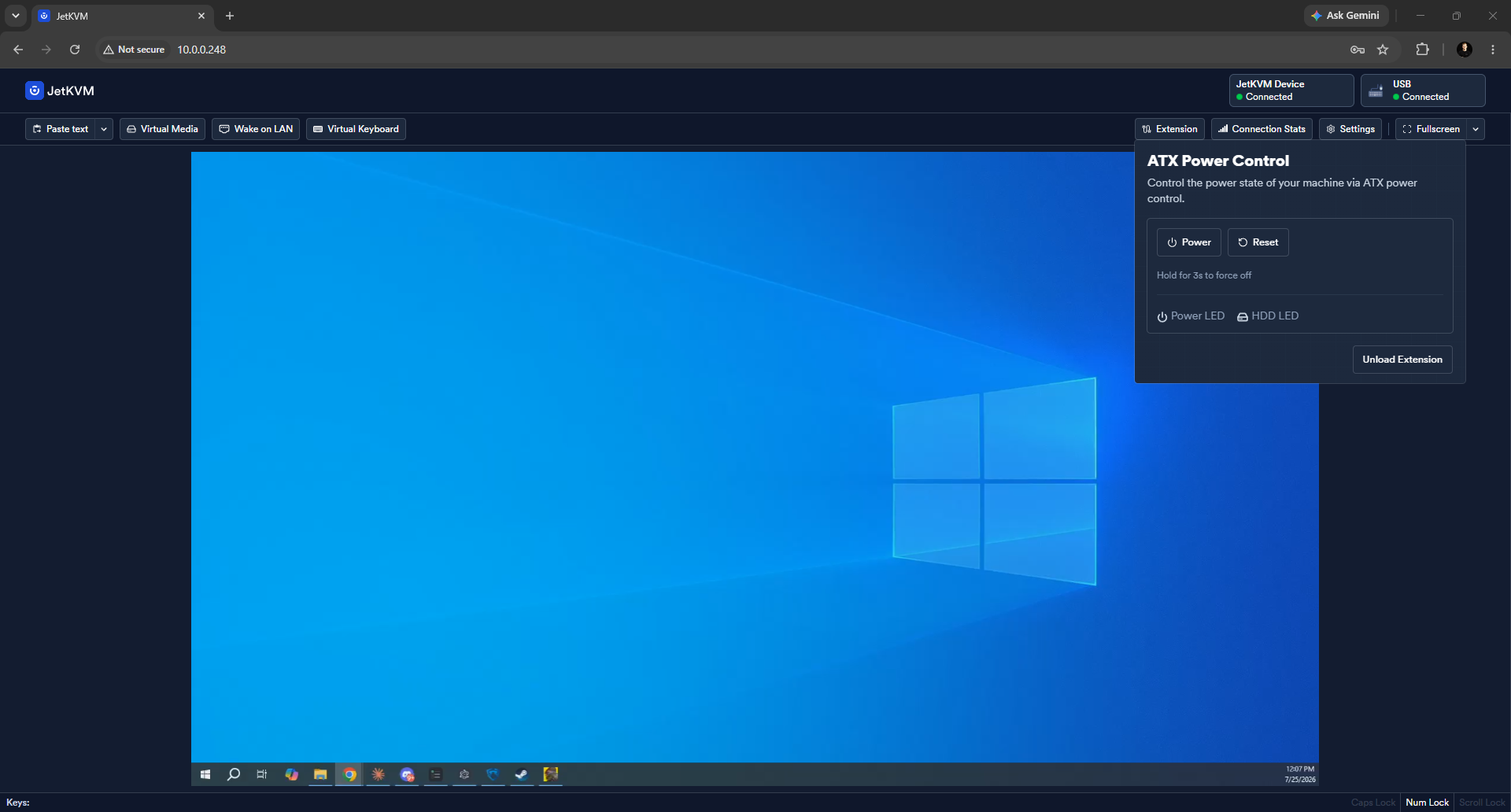
Once installed and enabled, the JetKVM interface gains power controls: a soft power button (a short press the OS can react to), a force-off (a long press for a truly hung machine), and a reset. Because the board also reads the power LED, the interface shows the current state, so you are not powering blind. Combined with the JetKVM's video and keyboard, this is what lets you recover a machine end to end from anywhere: power it on, watch it POST, enter the BIOS, boot an installer from virtual media, all without touching it. The BIOS-level side of that is covered in can an IP KVM access BIOS and UEFI.
How it compares to other devices
Every serious IP KVM has a power-control story, and they differ in wiring. The PiKVM drives ATX functions through the Raspberry Pi's GPIO pins; GL.iNet sells an ATX board for the Comet; and the NanoKVM line has its own approach. The JetKVM's is a clean, purpose-built extension board on a dedicated connector, which is simple to fit. One important limit applies to all of them: ATX power control depends on a standard PC front-panel header, so it does not work on Apple silicon Macs, which have no such header and require a physical power-button hold for recovery. If you manage Macs, no ATX board helps; we cover that in the ATX explainer.
The takeaway
The ATX extension is the accessory that makes the JetKVM a complete remote-hands tool rather than just a remote screen. The install is straightforward once you have identified your motherboard's front-panel pins: wire the board to the header, connect it to the JetKVM, enable the controls, and test. From then on you can power-cycle a dead or hung machine from anywhere, which is exactly the situation where remote access matters most. The full JetKVM assessment is in our JetKVM review, and remote access from outside your network is in the Tailscale guide.
This guide is based on our own hands-on install of the JetKVM ATX extension. Disclosure: it is published by WarpKVM, which is developing an IP KVM of its own.