October 9, 2026Explainer
JetKVM Troubleshooting: Login, Factory Reset, USB & Firmware Fixes
Every common JetKVM problem and its fix, from a black screen to a forgotten login. Most are the USB or HDMI side, and most take under a minute.
By Andrew Douglass · Founder
Disclosure: Our articles contain affiliate links, including Amazon. If you buy through one, we may earn a commission at no extra cost to you, and as an Amazon Associate we earn from qualifying purchases. It never affects our testing, measurements, or verdicts. Full disclosure.
Most JetKVM troubleshooting comes down to a handful of issues, and the good news is that nearly all of them are the HDMI or USB side of the setup rather than a fault in the device. This guide walks through the common problems in the order you are likely to hit them, a black screen, unresponsive keyboard or mouse, a device that disappears, a forgotten JetKVM login, and firmware trouble, with the fix for each. Work top to bottom and you will resolve the large majority of JetKVM issues in a minute or two.
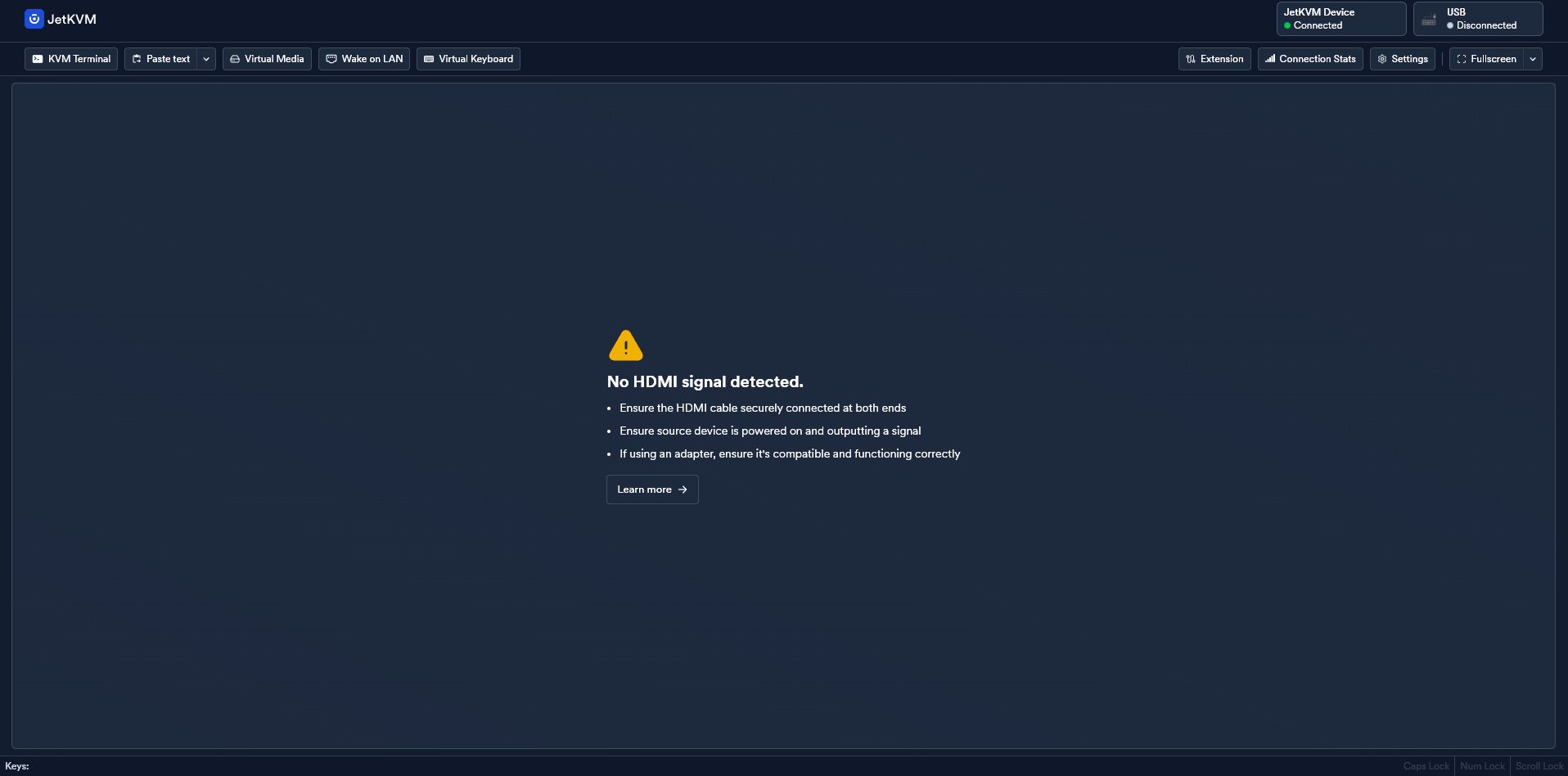
No video (black screen)
A black screen is the most common complaint, and it is almost always the video input, not the JetKVM. Check, in order:
- Is the target actually outputting HDMI? Confirm the machine is on and driving the port the JetKVM is plugged into. On a desktop with both integrated and discrete graphics, make sure the cable is on the active output.
- Is the resolution supported? The JetKVM captures at up to 1080p. If the target is set to a mode the capture chip cannot take, you get no picture. Set the target to 1080p or a standard mode.
- Is it an EDID handshake issue? The JetKVM presents itself as a display; occasionally a target needs a reconnect or a resolution change to negotiate correctly. A different HDMI cable is worth trying, since a marginal cable causes intermittent signal.
Keyboard or mouse not working
If you see the screen but cannot type or click, the problem is the USB side:
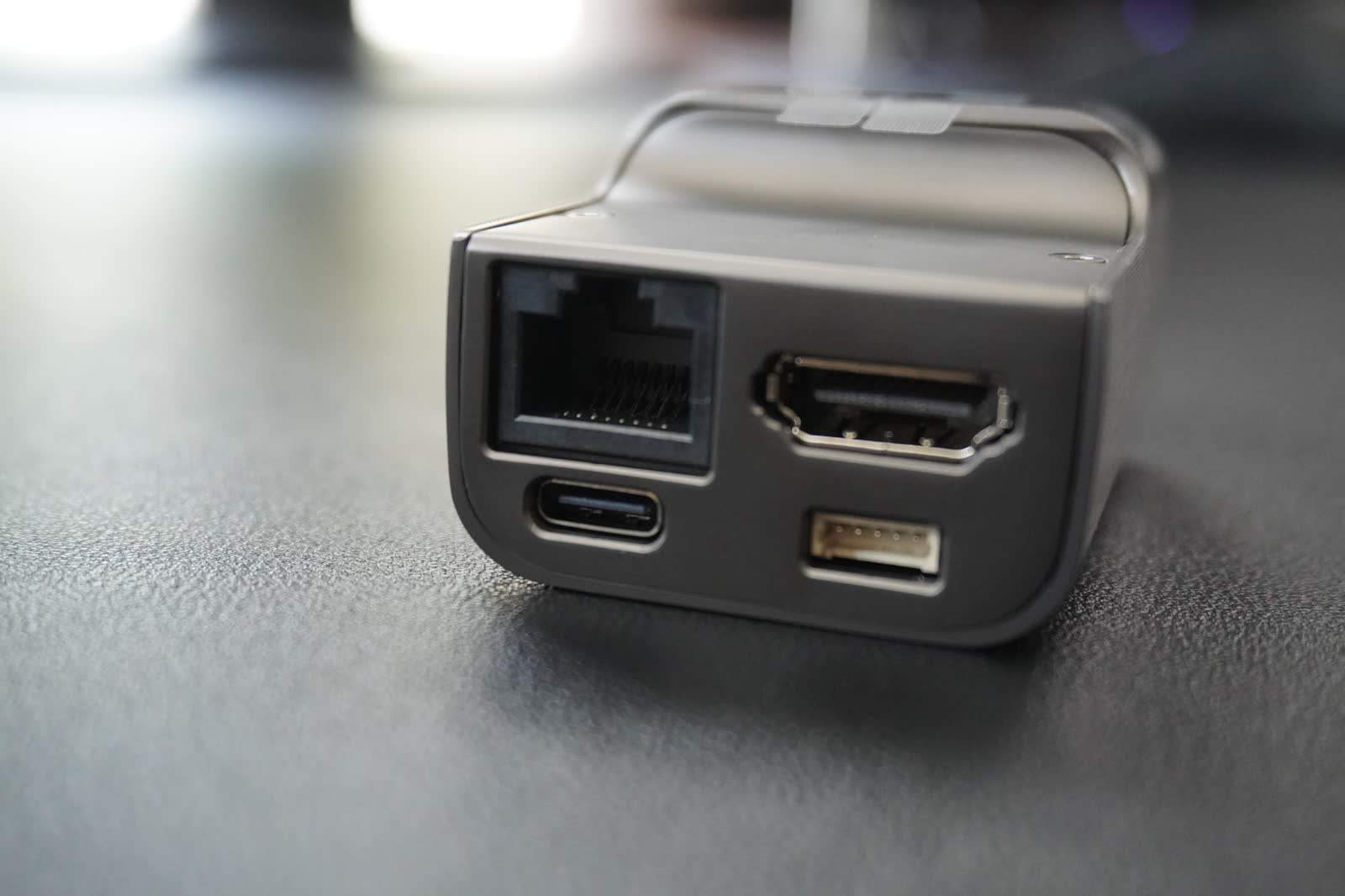
- Check the USB connection to the target. The JetKVM emulates the keyboard and mouse over its USB-C link to the machine; if that is loose or in a non-functional port, input will not reach the target.
- Confirm the target powers its USB. Some machines cut USB power in certain states; the JetKVM needs the target to accept its emulated devices.
- Try the other mouse mode. If the pointer is present but behaves oddly, especially across multiple monitors, switch between absolute and relative mouse mode in the settings.
The JetKVM disappears when the target powers off
If the device drops offline whenever the target shuts down, this is expected behavior with a simple fix. The JetKVM draws its power over the same USB-C cable that carries keyboard and mouse, so if the target cuts USB power when off, the JetKVM loses power too. Use a USB power splitter (or the JetKVM's power accessory) so the device stays alive independently of the target's power state. This is essential if you want to power the machine back on remotely.
Login and password recovery, and factory reset
If you are locked out or have forgotten the password, or the device is misbehaving in a way settings changes will not fix, a factory reset is the reset button. The reset restores defaults and lets you set a new login through first-time setup again.
Step 1
Note what a reset does
A factory reset clears your settings and login and returns the JetKVM to its out-of-box state. Your configuration is lost, but the device is recoverable.
Step 2
Trigger the reset
Use the device's documented factory-reset method for your hardware revision (a physical reset control, or reflashing the microSD with a fresh image). Check the JetKVM documentation for your exact model.
Step 3
Reflash the microSD if needed
Because the JetKVM boots from a removable microSD, a truly stuck device can be recovered by writing a fresh official image to the card on another computer, then reinserting it.
Step 4
Run first-time setup again
After the reset, the JetKVM walks you through creating a new login. Set a strong password, then reconnect your remote-access method.
Firmware update problems
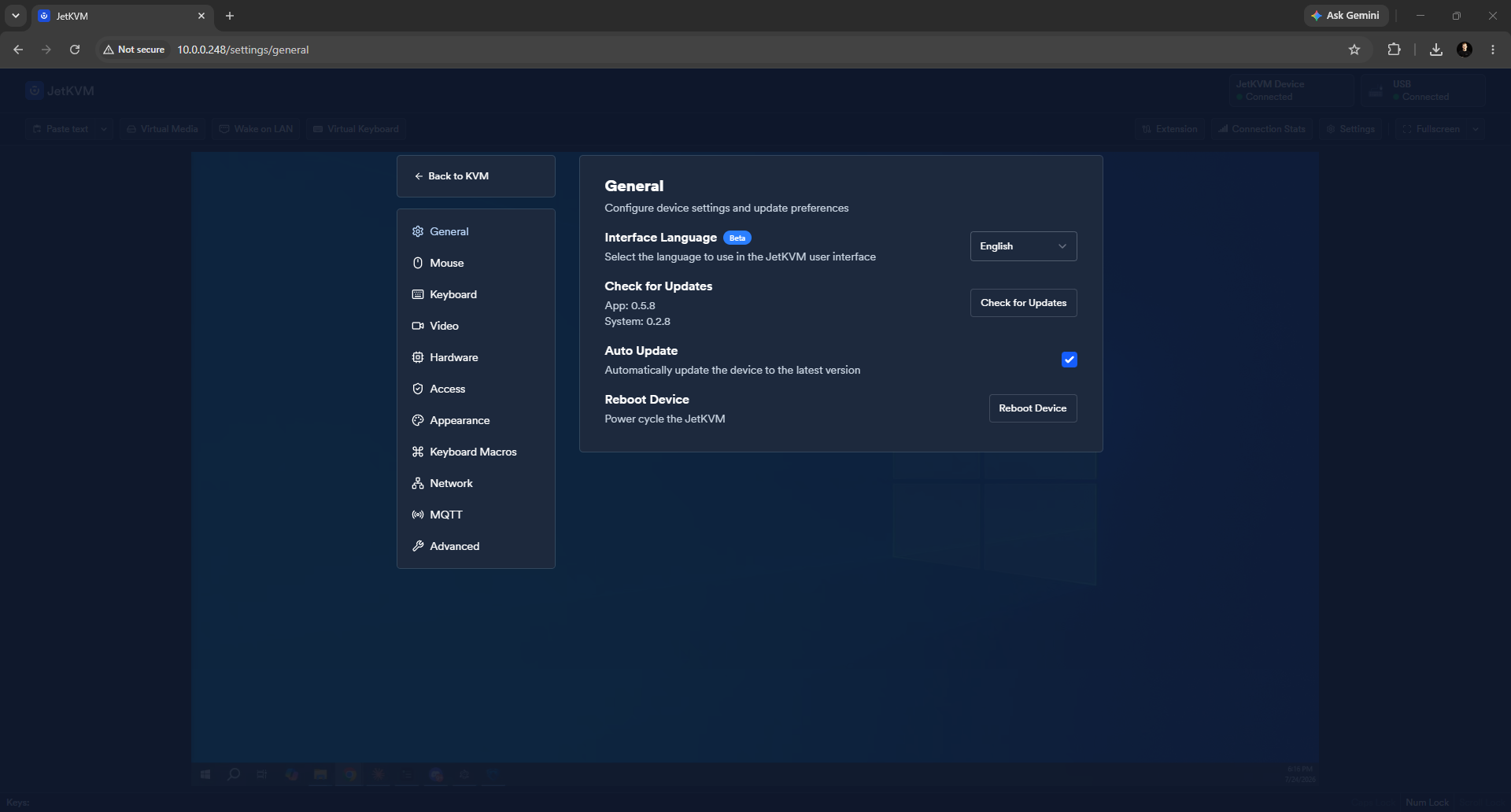
The JetKVM uses an A/B dual-rootfs scheme, which means updates are designed to be safe: if an update fails, the device can fall back to the previous working slot rather than bricking. If an update seems stuck or the device behaves oddly afterward:
- Be patient during the update, and do not pull power mid-update.
- If it will not recover, the removable microSD is your safety net: reflash a known-good official image on another machine, which restores the device regardless of firmware state.
- Keep firmware current once things are stable, since updates bring fixes and features, and the open-source firmware is actively developed.
Smaller quirks worth knowing
A few minor things are normal rather than faults: the printed markings on the enclosure can wipe off if the device gets warm from use (cosmetic only), and the stream can chug briefly under very heavy load, which is the single-core processor working hard. Neither affects function.
The takeaway
Almost every JetKVM problem is one of a few things: a black screen (check HDMI and resolution), dead input (check USB), a device that vanishes with the target (use a power splitter), or a lockout (factory reset). The removable microSD is the ultimate safety net, since a fresh official image recovers the device from nearly any state. If you are still stuck after these, the device documentation and community are the next stop. For getting set up cleanly in the first place, see our JetKVM setup guide, and for the full device assessment, our JetKVM review.
This guide is based on our own hands-on use of the JetKVM. Disclosure: it is published by WarpKVM, which is developing an IP KVM of its own.