October 1, 2026Explainer
JetKVM Setup Guide: From Unboxing to Remote Access
The JetKVM is genuinely plug-and-play: under two minutes from box to a working remote session. Here is the whole setup, plus the two settings to change first.
By Andrew Douglass · Founder
Disclosure: Our articles contain affiliate links, including Amazon. If you buy through one, we may earn a commission at no extra cost to you, and as an Amazon Associate we earn from qualifying purchases. It never affects our testing, measurements, or verdicts. Full disclosure.
This JetKVM setup guide covers the whole process, from opening the box to controlling a remote machine in a browser. The good news is there is not much to it: on our bench the JetKVM went from sealed box to a working remote stream in 1 minute 55 seconds, one of the fastest setups of any device we have tested. This walkthrough covers the wiring, finding the device on your network, the first login, the two things to change immediately, and how to reach it from outside your home.
What is in the box and what you need
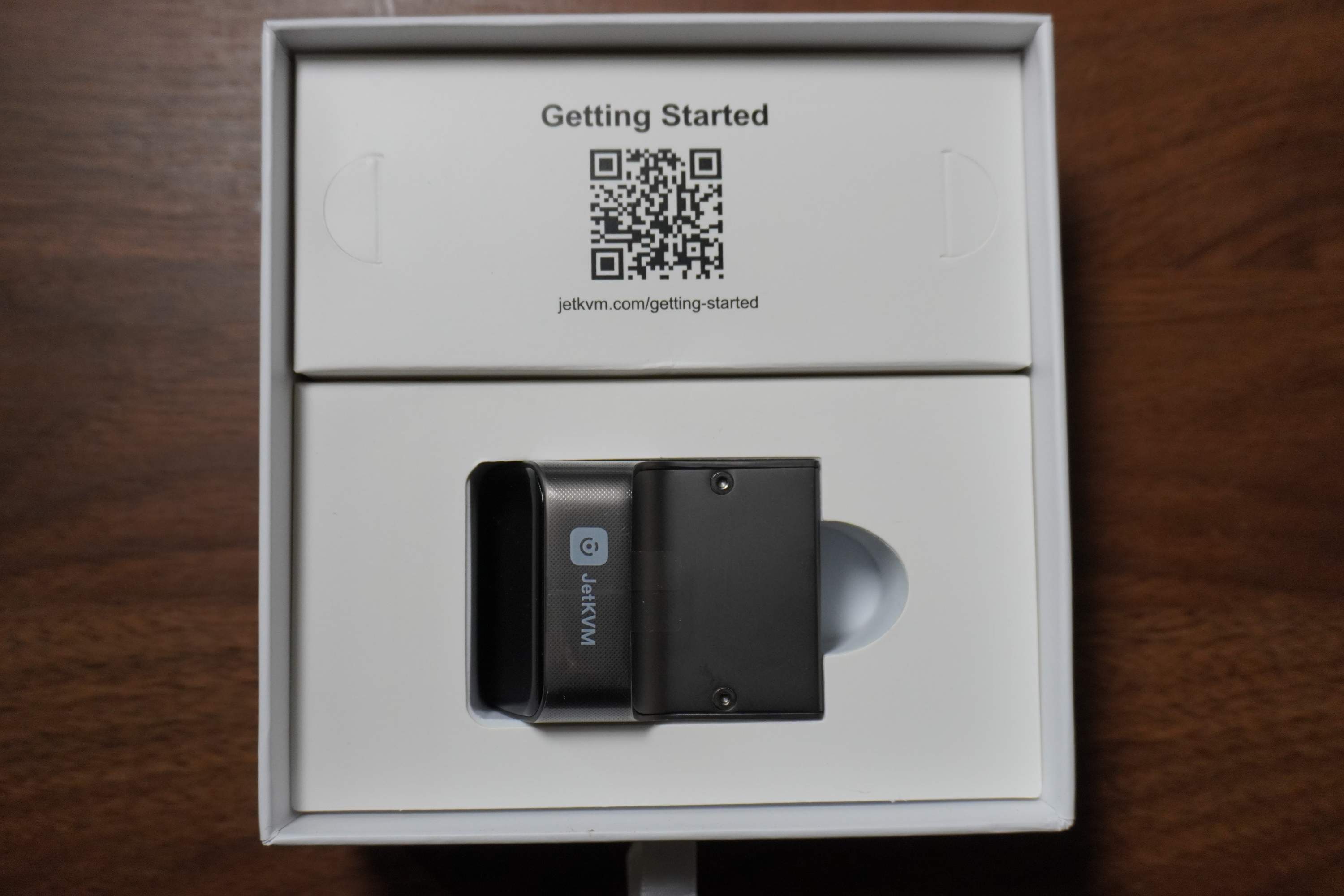
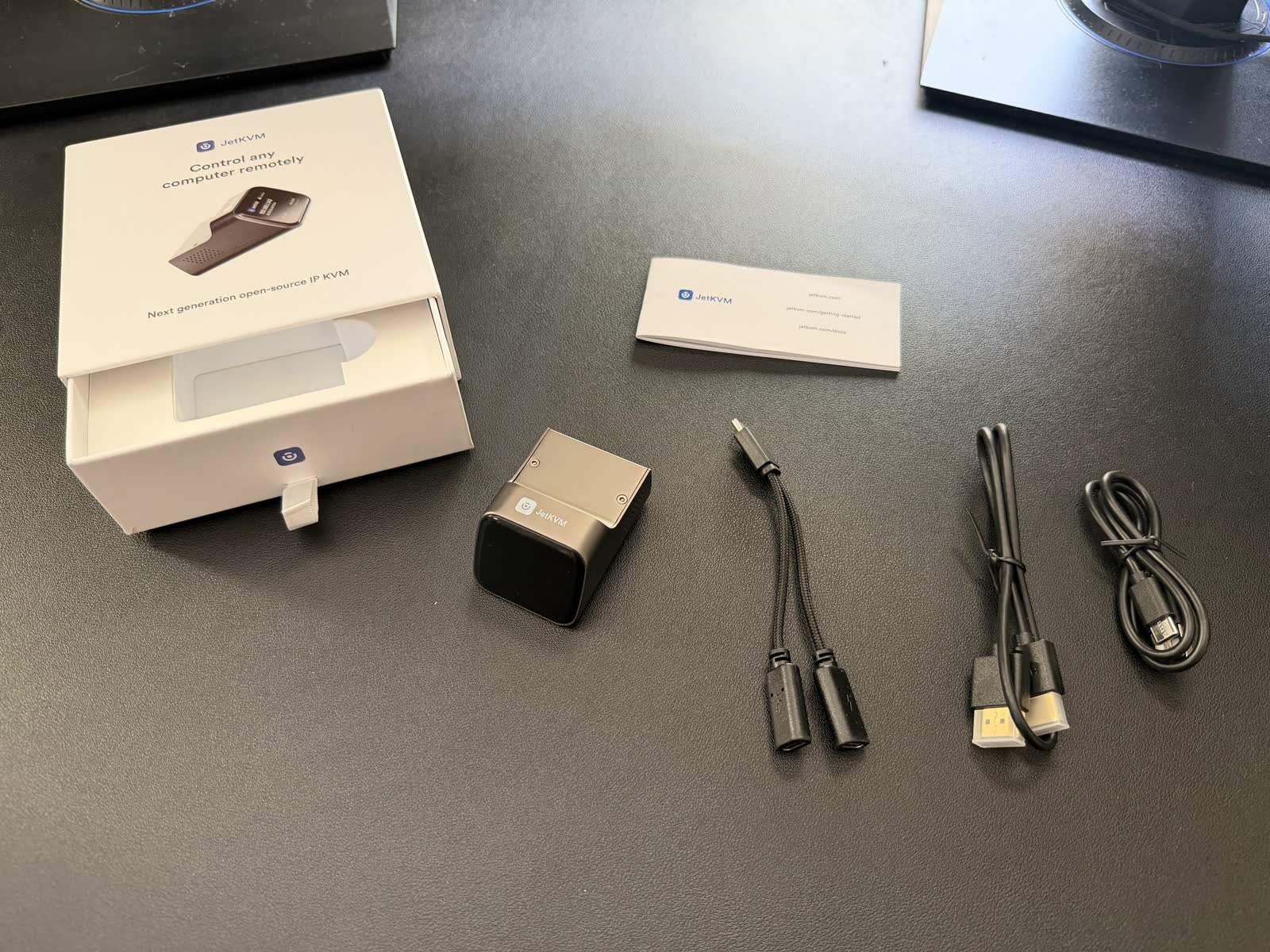
The JetKVM ships with the unit, a short HDMI cable, and a USB-C cable. To set it up you need the target machine (the computer you want to control), a network connection for the JetKVM, and a browser on any other device. One thing to plan for: if your target cuts USB power when it is off, you will want a USB power splitter or the JetKVM's power accessory so the device stays alive across a target power cycle, the same as most KVMs in this class.
The setup, step by step
Step 1
Connect the video
Run the HDMI cable from the target machine's video output into the JetKVM's HDMI input. The JetKVM presents itself as a display, so the target outputs to it as it would any monitor.
Step 2
Connect the USB
Plug the JetKVM's USB-C into a USB port on the target. This carries both the JetKVM's power and the emulated keyboard and mouse. If the target powers its USB off when shut down, use a power splitter so the JetKVM stays on.
Step 3
Connect the network
Plug the JetKVM into your network with Ethernet. It picks up an address by DHCP, so no manual configuration is needed to get started.
Step 4
Find the JetKVM on your network
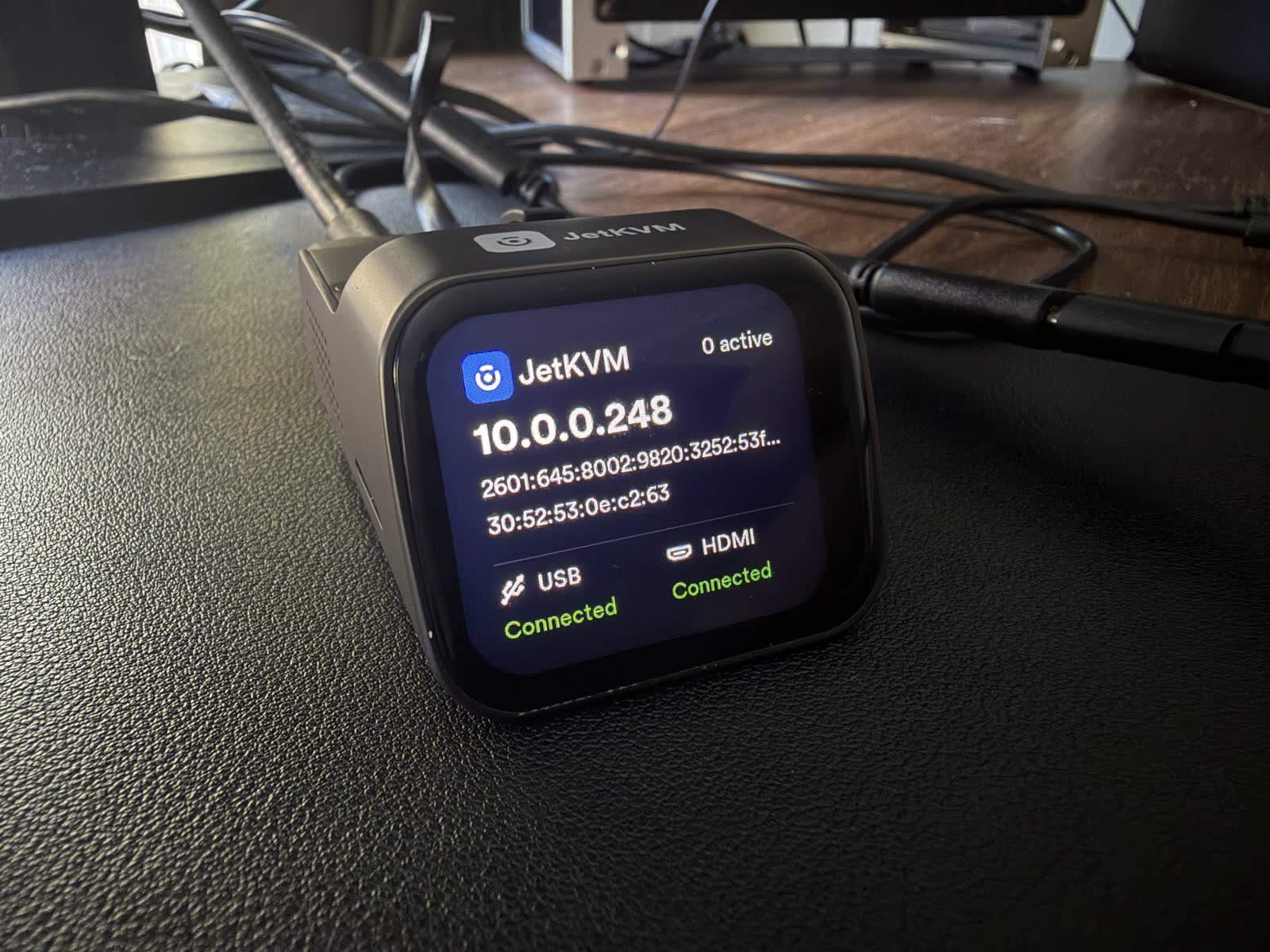
Find its IP address from your router's client list, or use the JetKVM Cloud adoption flow. Enter the IP in a browser on any device to reach the interface.
Step 5
Complete first-time setup
On first load, the JetKVM walks you through creating a login and naming the device. Set a strong password here; do not leave it open.
Step 6
Take control
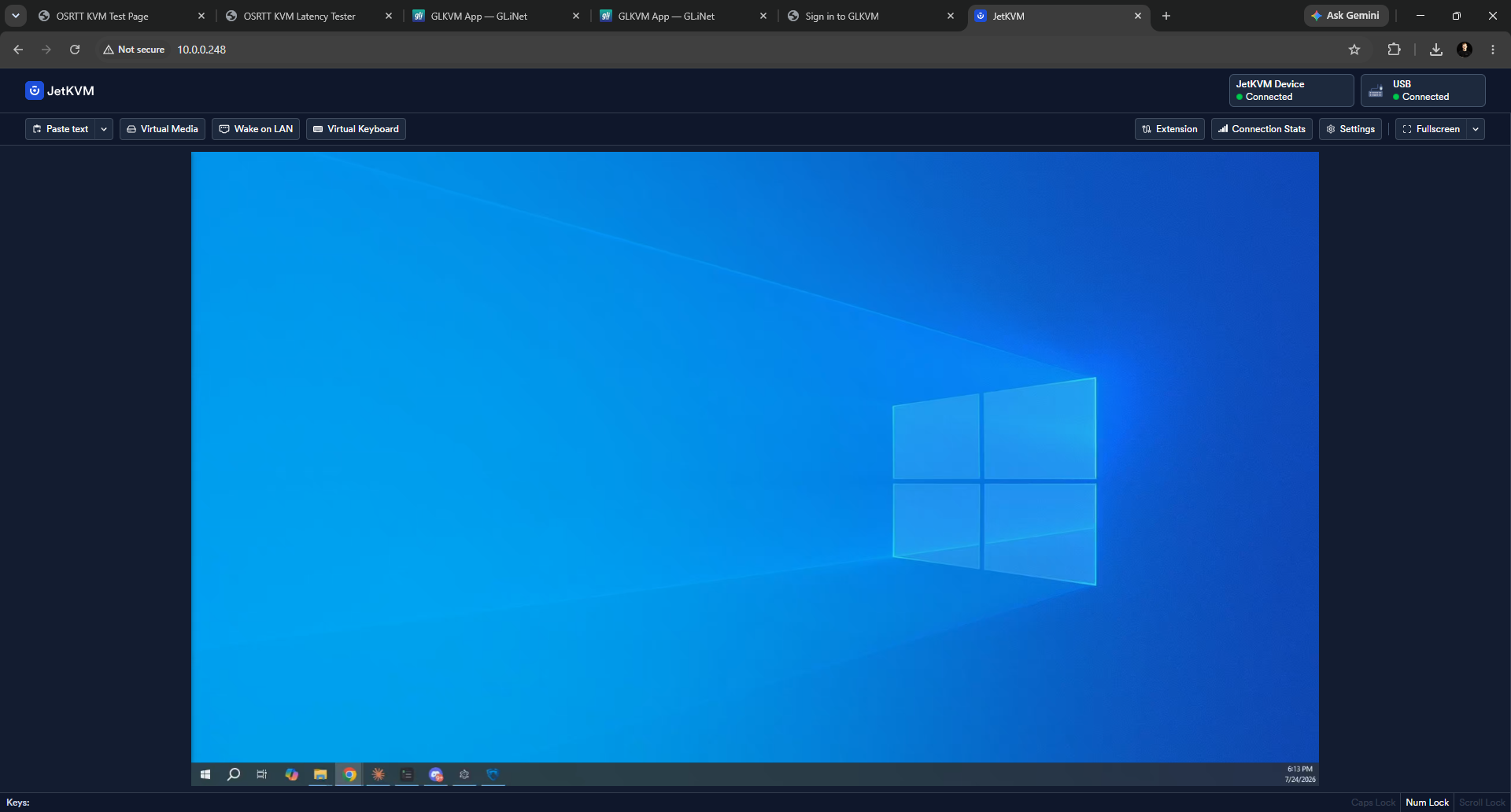
You should now see the target's screen in your browser and be able to type and click. That is the working remote session, reached in under two minutes on our bench.
The two things to change first
The JetKVM works out of the box, but two settings deserve immediate attention.
Set a strong password. The device is your remote hands on a machine at the hardware level, so its login matters. Create a real password during first-time setup rather than skipping it.
Decide how you will reach it remotely. Out of the box the JetKVM is reachable on your local network. To reach it from outside your home, you have two options: the vendor's JetKVM Cloud relay, which is convenient, or a self-hosted path over Tailscale, which keeps everything on your own private network with no port forwarding and nothing routed through a vendor. We walk through the Tailscale route for every device, including the JetKVM, in our Tailscale KVM guide. Whatever you choose, never expose the JetKVM's web interface directly to the open internet; our security guide explains why. Technically, the JetKVM streams over WebRTC, which uses STUN to negotiate a peer-to-peer path through NAT on remote connections, and its extension connector (an RJ12-style port on earlier hardware, a dedicated 5-pin connector on the 2026 revision) is where add-ons like the ATX board plug in.
Using it: virtual media and beyond
Once you are in, the JetKVM does the full range of remote-KVM tasks. You can reach the target's BIOS or UEFI setup (it works below the operating system, unlike remote-desktop software), use the one-time boot menu, and mount an ISO as virtual media to install or repair an OS on a machine with no physical media. That last capability, covered in how virtual media works, is what turns the JetKVM from a remote screen into genuine remote hands. If you later add the ATX power-control extension, you can also power-cycle a fully hung machine remotely, which we cover in the JetKVM ATX guide.
If something goes wrong
Setup is usually smooth, but a few issues come up. If you see no video, it is almost always the HDMI side: confirm the target is outputting and, if needed, adjust the resolution, since capture is capped at 1080p. If the keyboard or mouse does not work, check the USB connection to the target and that the target has power to its USB ports. If the device seems to vanish when the target powers off, that is the USB-power issue, use a splitter. For the full list of common problems and fixes, see our JetKVM troubleshooting guide.
The takeaway
The JetKVM earns its reputation partly on how painless setup is: wire three cables, find it on your network, set a password, and you have hardware-level remote access in under two minutes. The only real decisions are securing it and choosing your remote-access path, both of which take a few more minutes and are worth doing before you rely on it. The measured setup times across every device are in our setup time comparison, and the full device assessment is in our JetKVM review.
This guide is based on our own hands-on setup of the JetKVM. Disclosure: it is published by WarpKVM, which is developing an IP KVM of its own.